From the Claude Code Creator
Boris Cherny's Claude Code Workflow
13 tips from Boris Cherny, the creator of Claude Code at Anthropic. Learn how he runs parallel sessions, uses Plan mode, and builds team workflows for production-quality results.
Read Boris Cherny's Original Tweet Thread
This cheatsheet summarizes Boris's viral thread on how he uses Claude Code. See the original with all comments and discussion.
💡 What is it?
These are the actual workflows and tips shared by Boris Cherny, the engineer who created Claude Code at Anthropic. He shares how he runs 5+ Claude sessions in parallel, uses Opus 4.5 with thinking, and has built team workflows around shared CLAUDE.md files and slash commands. This is how someone who built the tool uses it every day.
Key insights
- Scale with parallel sessions — run 5+ Claudes in terminal + web + mobile simultaneously
- Use Opus 4.5 with thinking — it's slower but requires less steering, so it's faster overall
- Plan mode first — Shift+Tab twice, refine the plan, then auto-accept
- Automate inner loops — slash commands, subagents, and hooks for repeated workflows
- Always verify work — give Claude a feedback loop for 2-3x quality improvement
Parallel sessions & scale
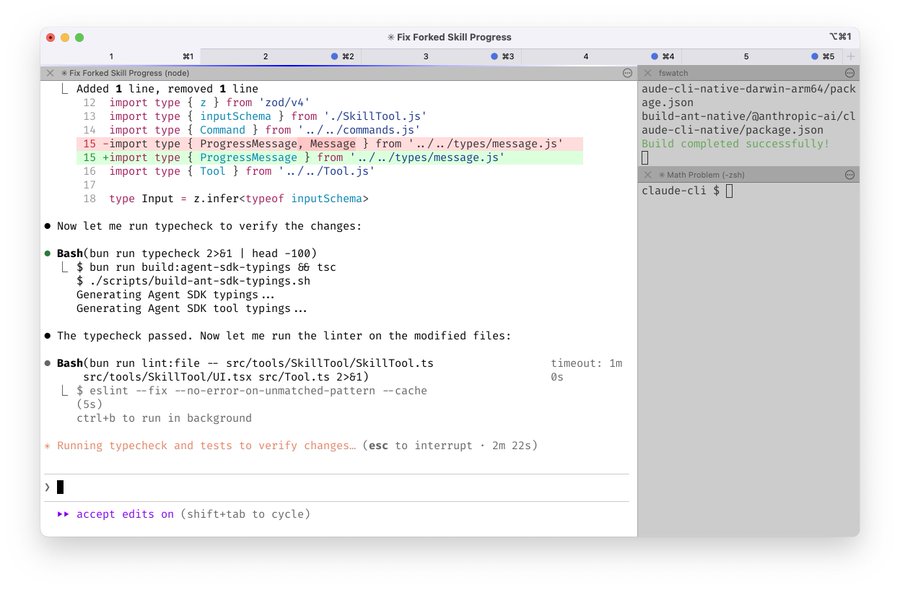
- [Tip #1]Run 5 Claudes in parallel in your terminal. Number tabs 1-5 and use system notifications to know when a Claude needs input.
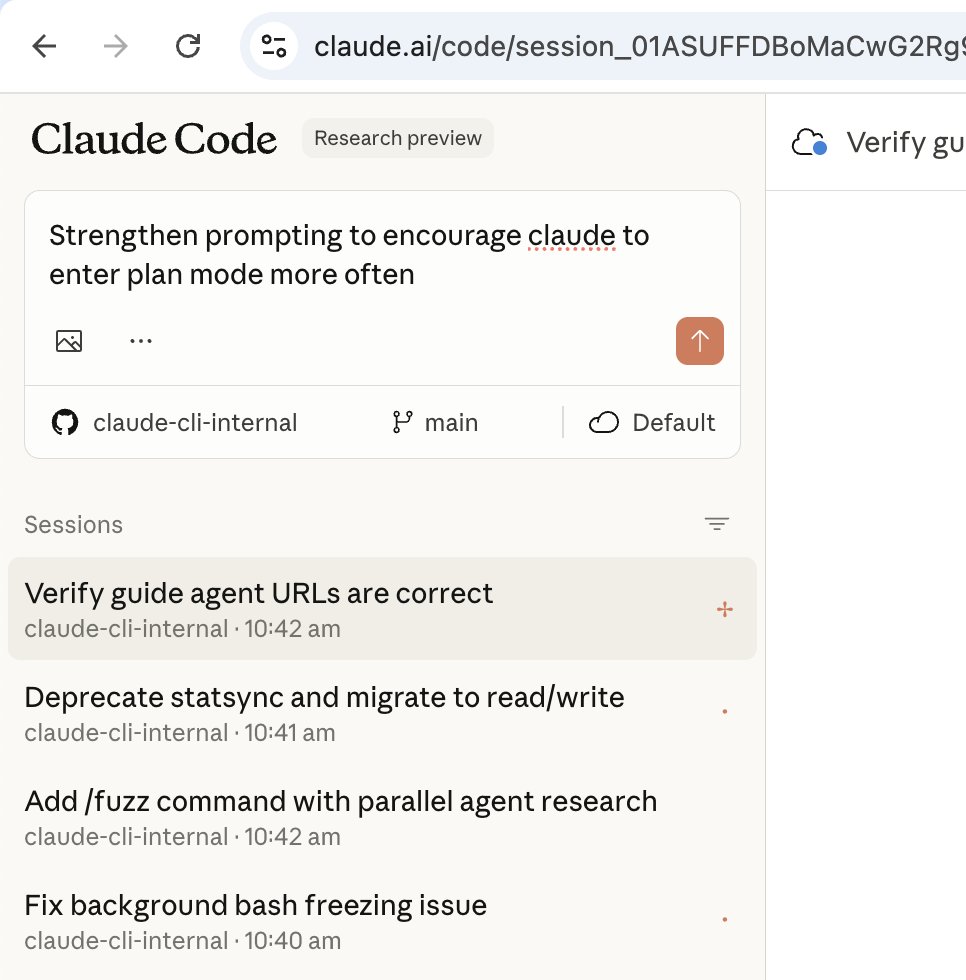
- [Tip #2]Run 5-10 additional Claudes on claude.ai/code in parallel. Hand off sessions with
&, use--teleportto move between them, and start sessions from the Claude iOS app throughout the day.
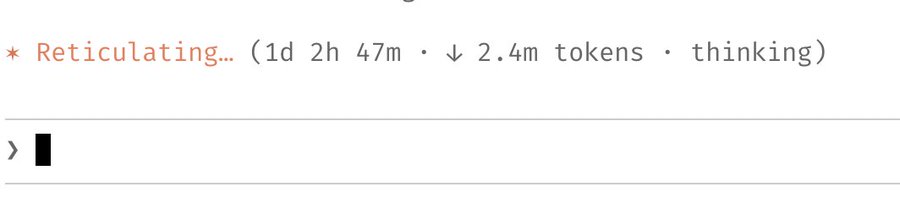
- [Tip #12]For long-running tasks, use background agents, Stop hooks, or the ralph-wiggum plugin. Use
--permission-mode=dontAskor--dangerously-skip-permissionsin a sandbox to avoid permission prompts for the session, so Claude can cook without being blocked on you.
Model & planning strategy
- [Tip #3]Use Opus 4.5 with thinking for everything. It's the best coding model — even though it's bigger & slower, you steer it less and it's better at tool use, so it's almost always faster in the end.
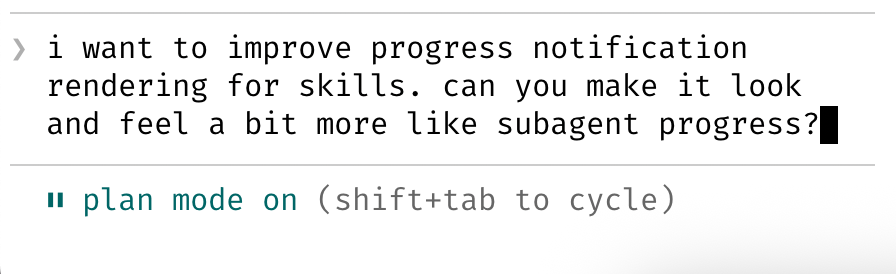
- [Tip #6]Start most sessions in Plan mode — press
Shift+Tabtwice. Go back and forth until you like the plan, then switch to auto-accept. Claude can usually 1-shot it from a good plan.
A good plan is really important!
Take time to refine the plan before letting Claude execute. The quality of the plan directly impacts the quality of the code.
Team collaboration
- [Tip #4]Share a single CLAUDE.md with your team. Check it into git. The whole team contributes multiple times a week. Anytime you see Claude do something incorrectly, add it to the CLAUDE.md.
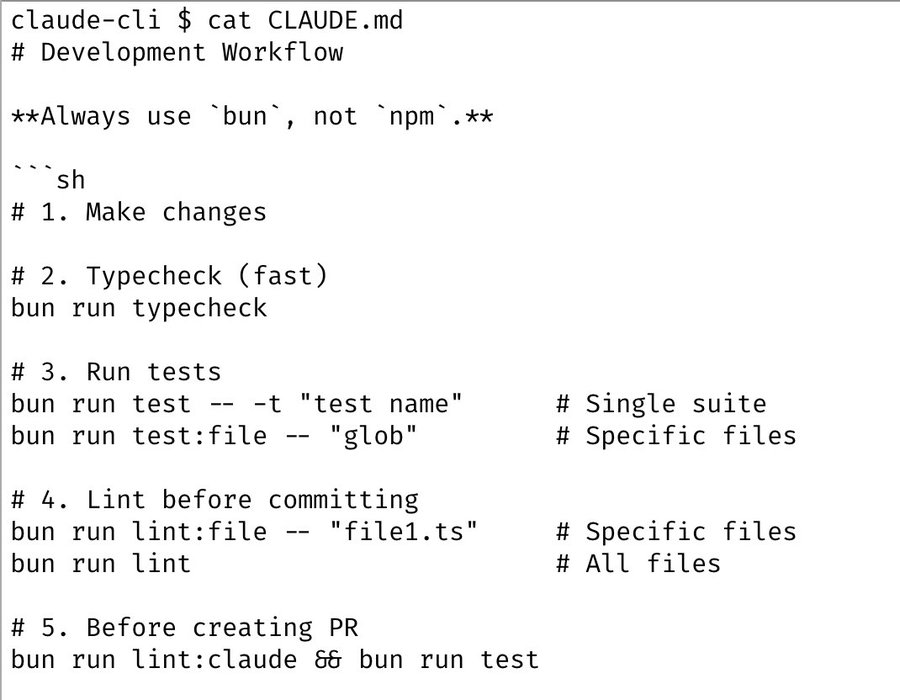
- [Tip #5]Use @.claude in code reviews to update CLAUDE.md as part of PRs. Use the Claude Code GitHub Action (
/install-github-action). It's a version of "Compounding Engineering."
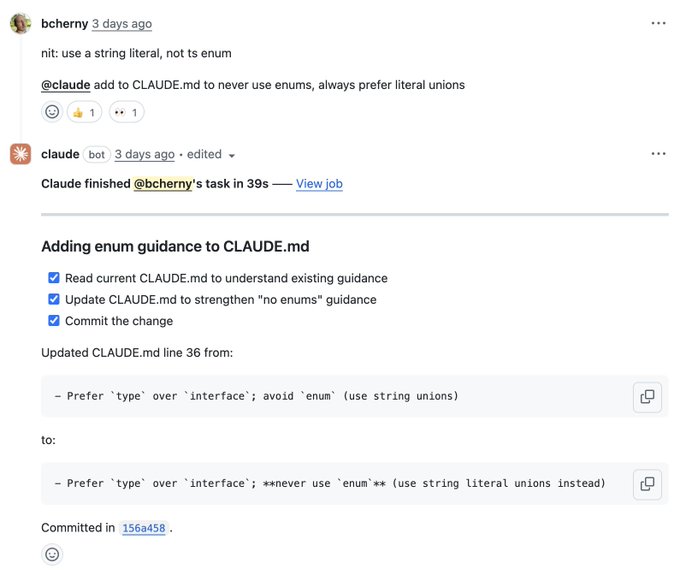
Compounding Engineering
Every code review becomes an opportunity to improve Claude's knowledge. The team's collective learnings compound over time.
Automation & workflows
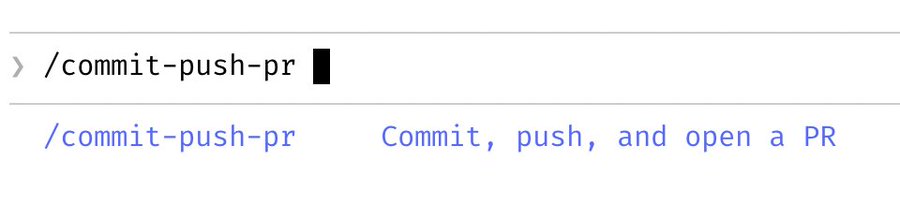
- [Tip #7]Use slash commands for every inner loop — workflows you do many times a day. Commands live in
.claude/commands/and are checked into git. Example:/commit-push-prused dozens of times daily.
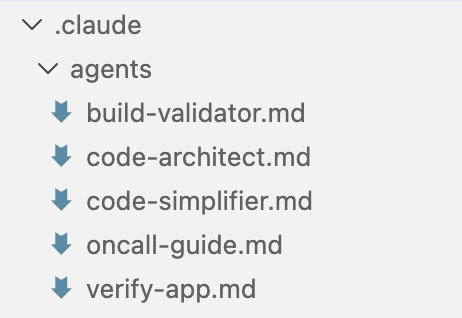
- [Tip #8]Use subagents for common workflows —
code-simplifier(simplifies code after Claude is done),verify-app(tests end-to-end). Subagents docs →
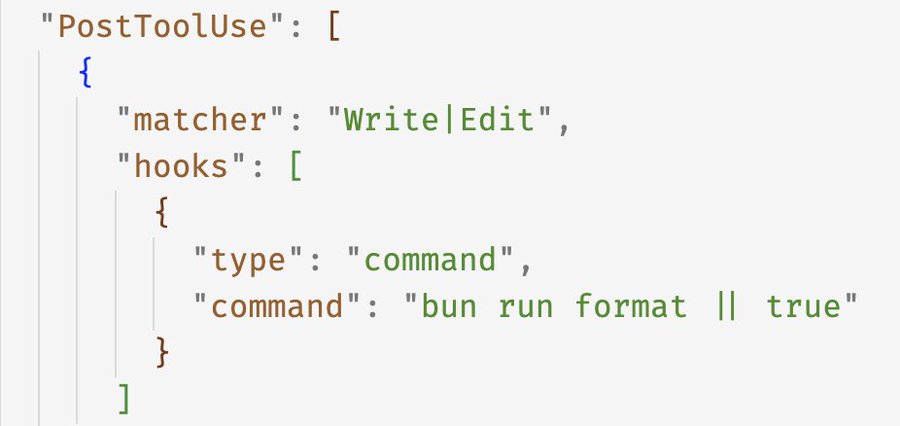
- [Tip #9]Use a PostToolUse hook to format code. Claude generates well-formatted code, but the hook handles the last 10% to avoid CI errors.
Inline bash in slash commands
Use inline bash to pre-compute git status and other info to make commands run quickly without model back-and-forth.
Permissions & tools
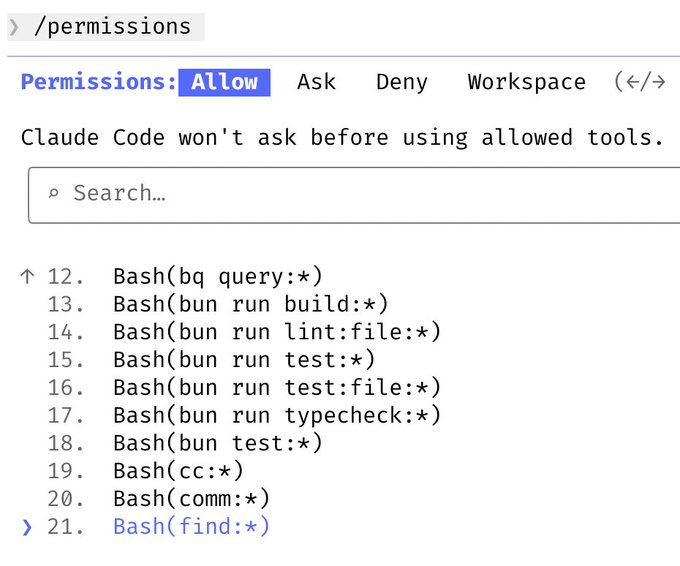
- [Tip #10]Pre-allow safe bash commands instead of using
--dangerously-skip-permissions. Use/permissionsto allow safe bash commands and check settings into.claude/settings.jsonto share with the team.
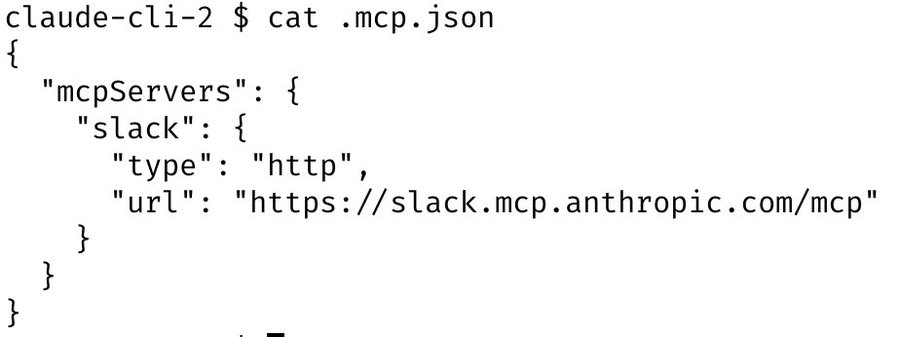
- [Tip #11]Let Claude use all your tools — Slack (via MCP), BigQuery (bq CLI), Sentry for error logs. Check MCP config into
.mcp.jsonand share with the team.
🌟 The most important tip: Verification
[Tip #13]Give Claude a way to verify its work — this 2-3x the quality of the final result.
- Claude tests every change to claude.ai/code using the Claude Chrome extension. It opens a browser, tests the UI, and iterates until the code works and UX feels good.
- Verification looks different for each domain — bash command, test suite, browser testing, phone simulator. Invest in making this rock-solid.
The feedback loop is everything
If Claude has a way to check its own work, it will iterate until it's right. Without verification, you're relying on first-pass quality.
Quick Reference
Shift+Tab × 2Shift+Tab.claude/commands/.claude/settings.json.mcp.jsonOpus 4.5 + thinking